Saturday, December 25, 2004

Need Bifocals for OE

Q.
I looked in the archives but could not find anything on this question. A while back in this Blog you posted how to increase the screen resolution to make the text larger and easier to read. My question; is there a way to increase the text size in Outlook Express mail program ?


A.
To enlarge the text size of an individual message, double click on it, go to the View menu at the top, scroll down to Text Size, and choose what you want. Options range anywhere from small, medium, to in your face. This is great if there’s just one message that you’re having a hard time with, but what do you do if you want to apply a new size to all of your received messages? To do that, go to the Tools menu at the top of Outlook Express and choose Options. From there, select the Read tab and then click on the Fonts button at the bottom of the dialog window. You’ll then see a listing of font sizing options that you can customize. Don’t make the text too big for your needs; you could end up with it engraved on your retinas. Thank you for your question.

Do you havea question, if so send it to wb9otx@gmail.com and I'll do my best to find the answer for you.
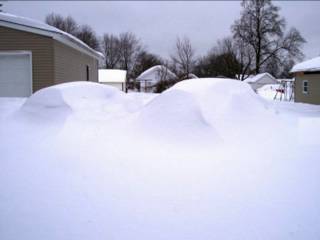

The Great Snow - Christmas 2004


Can you find the two cars ? This is the great Christmas snow
of 2004 Versailles, Indiana.

Your Christmas Present

Here is a little Christmas present for you, not from me but from a very proficient programmer named Doug Cox.. He has several very small programs that he gives away. You can find all of them at http://jdmcox.com/ The one that I love is USAPhotoMaps. I’m a sucker for any type of mapping program and this one will give you a one-meter photo image. Just enter the latitude and longitude, city, or zip code and poof there is the photo. I have a GPS unit so this program is great to use with it. Give this little gem a try and I know you will love it too. Try the calendar program also, its great too.

Have a happy Holiday !
Jack Demaree
http://ripleycounty.net


Friday, December 24, 2004

Blast from the Past

How it all started

Way more than a year ago I decided to do a mail list because I was answering so many computer questions over the telephone. I thought people could and would subscribe to this list, after joining they could send their questions in for the answer. As with most big ideas I have it flopped. It seemed people just could not understand a mail list. I kept the list going for a few months but it just didn’t fly. I decided to end the list and create this Blog. So here we are one year later still doing the Blog thing. It has great advantages to for me and you, such as you the reader decide if you want to read it or not. You do not have to know anything but the address (URL) to read it. You can or can not participate. I as the composer of the Blog can write what I want about anything I want. You the reader of the Blog can or can not read it, “that makes it perfect for the both of us”. Is it working?, well it has been going on for over a full year now, it works for me, you decide if it works for you. If you are not a regular reader please dive into the archives to read the past entries. I thought also you may want to have a look at the list files from the past. If so, you can download the archived files in zip format by clicking here:

http://wb9otx.com/blog/Ajacks_Help_List_Yahoo.zip

For a blast from the past I thought I would republish the first file from the mail list. I think you will get a kick out of it, I did. Here it is:
<<<<<<<<<<<<<<<<<<<<<>>>>>>>>>>>>>>>>>>>>

From: Jonathan Demaree
Date: Thu Mar 20, 2003 8:41am
Subject: March 20, 2003


Ajacks Help Mail List

March 20, 2003

I'm going to call this thing a newsletter, but it will contain lots
of things like tips on Windows, software, basic computer training,
viruses, graphics and lots of other stuff. I have added you to this
list because at one time or other I have sent you mail in the past.
You can stop getting this newsletter by simply clicking or following
the link at the bottom. Please forward to anyone that you think may
like to receive it.

I am going to use the Yahoo service because I have used it in the
past and I know how to use it and it works very well. If you want to
see the archives you will have to get a Yahoo account. I have found
that most people don't want to do this and there will be no need as
long as you don't want to look at anything from the past. People are
paranoid about signing up for things on the Web for some reason; I
guess it is just a privacy thing. I do get lots of junk mail and
spam because I poke my email address into Web forms. Later on I'll
tell you how to keep out the spam or at least cut it way down.

Please look over my spelling and typos. I never received very high
grades in grammar or spelling while in school and I haven't improved
much since then. I will do the best I can.

I will ask you to contribute to this letter. If you have a trick
that you think others should know, please send it to me and I will
include it. There will be others that ad to this letter as I can
tell you up front that I do not know everything. I have friends that
are much better on some subjects than I.


Lets Fix it:
OK, here is the first thing I recommend, Go find the program called
Windows Explorer.
If you don't find it in your start menu look under accessories. If
you still can't locate it, do a search for it by going to the start
menu, then click on "search", click on "all files and folders". In
the top field of the form type: "Explorer" without the quotes.
You should find several when it completes the search, but the one
you want is in the Windows directory. It will look like
this: "explorer c:\windows 981 kb application".

Right click on this file.
Click on "create Shortcut".
A pop up box will appear telling you it can't do this but do you
want to put it on your Desktop. Click "YES"
Now you have an easy way to open the big door to your file system.
Now we still need to fix what Bill Gates and his crew screwed up.

Open or run the program Windows Explorer
Click on "tools"
Then "folder options"
Then "view"
Move down the list a little and
Uncheck "Hide extensions for known file types" if it is checked.
Now click "Apply" Then "OK"

Now we have the extensions so we can see them. With out doing this
you can't tell the jockeys from the horses. Now if you look inside a
folder or directory (same thing) you can see what kind of file it
is, like: .txt, .doc, .exe, .log, .gif, .jpg and so on.

Now this next deal is up to you. I think the Windows default is to
view the files as icons,
but I like Details much better as it provides just what is
says "Details" and more than the Icon view, such as size, type, and
date. As I said this is up to you how you look.
Now that we have all that done lets fix the thing up a little so we
can get some use out of it. Click on the icon you made on your
desktop or go to the start menu and open up Windows Explorer. Don't
confuse this with Internet Explorer.

In Windows 98 just click on "Drive (C:)" to highlight (it will turn
blue)
Then look up in the top left hand corner and you will see "File",
click File.
This brings a drop down menu. Slide your curser over "New". (don't
click it)
Continue to slide or move your curser to "Folder"
Click "Folder"
Now it gets tricky if you are using Windows 98. Look for a folder
that just appeared.
It may be highlighted blue next to a yellow folder or it may just
say New Folder. If it is blue (high lighted) type "Down Load"
And then hit Enter. If the folder is not blue but yellow and
says "New Folder" then we must rename it. To do this Right click the
folder saying "New Folder"
Now click "Rename"
Type "Down Load" Then hit Enter.

In Windows XP (you should be using XP as it is much better OS than
Windows 98).

In XP click on the Plus sign to the front of "My Computer".
Now click DRIVE (C:) It now turns blue.
Then look up in the top left hand corner and you will see "File",
click File.
This brings a drop down menu. Slide your curser over "New". (don't
click it)
Continue to slide or move your curser to "Folder"
Click "Folder"
A new folder will appear in the bottom right window pain with "New
Folder" highlighted in blue.
Type "Down Load" and hit "Enter".


That's it ……. Now you have a folder that you can always find. This
is a much better place to put your downloaded programs, much better
than Desktop.

Hint:
Never Never Ever unzip a file in the desktop directory. Why you ask?
You will have icons everywhere all over the screen, don't do it,
move it to your new "Down Load" folder.

Most people have never used Windows Explorer, but believe me the
next time you download a program that is compressed or zipped you
will need it. One of the things I here most often is, "I downloaded
it but now I don't know where it went". This happens all the time
and it still happens to me "the big Guru screws up too". You can
find it with the find command and Windows Explorer program.

OK, I think that this is enough for today. Next time we will copy
and past some things.
This is for you poor AOL, CS, or MSN people. Get a life, why not get
a real ISP.
If you have a question contact me at jack@wb9otx.com That is an "O"
not a zero in my address. Please DO NOT hit reply to this email, as
it will bounce back to you.

See you next time,
Jack Demaree
http://wb9otx.tripod.com


If you have tech support questions or ideas and/or submissions for
this newsletter please email them to: jack@wb9otx.com

Legal Stuff:
Information provided in this publication is provided "as is" without
warranty of any kind, either expressed or implied. Although the
information provided is known to work on most systems, it may not
work on ALL systems. Make use of any information supplied at your
own risk. This newsletter is NOT © copy written, So please do
anything you like with it.
<<<<<<<<<<<<<<<<<<<>>>>>>>>>>>>>>>>>>>
I hope you liked this entry into this Blog, It brought back some nice memories for me.
Jack Demaree
jack@wb9otx.com
http://ripleycounty.net

Gremlins

I started to tell you about a very nice program to send your photos in slideshow format using your email client, but just as I started typing my firewall alerted me of a possible hijacking of my computer. So I guess I will uninstall it. Too bad that great little programs contain devious gremlins that attempt to mine information out of your computer and send it to who knows where. Always be on your guard by having a good virus, firewall, and spyware removers.

Merry Charismas to all.

Thursday, December 23, 2004

Wall Papers Blurrrrrr

Q.
I like to change my desktop wallpaper a lot but when I do it looks all blurred. How can I fix this ?

A.
I would think that the image you are trying to use for wallpaper is too small. The first piece of information you need is your screen resolution. Most people have it set to 800 by 600. I guess I’m weird, as mine is set to 1024 by 768. If you don’t know what yours is set to;
Right click on the desktop
Left click on properties
Click the settings tab
Look in the middle left and read the number, most of you will see 800 by 600

Keep this number in mind when looking for new wallpapers. If the photo you want to use is smaller than your screen res it will look blurry, that is if you stretch it to fit the full desktop. One way to make it look OK is to set it to “Center”, but you will get a large solid color border around the photo, and I don’t think you want that. Look for photos that match your screen res and the blurry ‘s will be gone.

Sunday, December 19, 2004

Spoofs all day long

All day long I have been receiving and then forwarding Spoofs. What the heck is a Spoof ? Well to put it in a nutshell, it is an email asking for some personal information such as user names; pass words, PIN numbers, and other bank information. It comes from an unknown person disguised as a company that you do business with via the Internet. This is also called Phishing, yes with a ph. Favorite target companies are PayPal, eBay, and all the credit card companies plus a few banks. Theses emails look real, very real, but don’t be fooled, never ever click on the link (URL) they provide. The best thing to do is forward it to the company. If the spoof is telling you it is from eBay, send it to spoof@ebay.com Just put spoof @ companyName.com or net. Do not change anything. You will receive a reply very quickly telling you it is a spoof or it is real. I received one from eBay yesterday asking me to fill out a survey. I promptly forwarded it and a reply was in my inbox telling me it was legitimate. I think this is the first time I ever received a reply telling me it was OK to click on the link. Better to be safe, giving out information that makes it easy to steal your identity is a big problem to fix when / if it happens. Never give out this information over the phone either. These Internet companies will never ask for a password. I only know of a few exceptions, that is the IRS and DirecTV. Both are companies that you want to avoid if you can. Again, “never ever click the link” just say no to Spoofs.


Re-Format, Oh no not again !

I think it was last June the last time I went through the misery of formatting and reloading this computer. I am the back-up king as some call me, but I prepared for a day or two before I started. I have a wireless network so I ran all the files, drivers, photos, and anything else I would want to restore or need to reload over on another computer’s hard drive. I started at 7:00 PM, went to bed at 10:00, I started again at 7AM and as the big and little hand rested on 12 I was pretty much finished. I will really not be done for a few more days, because you always remember a program or two that was there but not now and it will have to be loaded. I have not done any of the little tweaks to the OS that I like, but this will come as I think of them. Wow ! I did not realize just how slow this machine was running. It zips along just like it came out of the box now. I reformat this laptop about every six months or so because I do most of my downloading and experimenting with it. It gets jammed up with garbage left over from removed programs. I also get a fair share of spy ware and viruses on it too. No one ever dose this unless their system crashes, but they need to about one a year. I need to do it more as I do weird and wacko things with a computer. It is a big hassle and takes about six to ten hours to complete, but it is worth it in the long run. If you have never reformatted and reloaded your computer get a geek to help you or you will be wet from sweat before you finish.